A laptop that takes five minutes to start usually isn't worn out. It has a slow hard drive, too little memory and years of clutter. Refurbishing it fixes all three for a fraction of the price of a new one. Here's how to do it, in order.
Step 1: Check it's worth doing
Refurbishing makes sense when the machine is slow but sound: it switches on reliably, the screen and keyboard work, and the hinges and case are intact. It usually isn't worth it if the motherboard is faulty, there's liquid damage, or the laptop is well over ten years old.
Also check the operating system. Windows 10 stopped receiving free security updates in October 2025. Windows 11 needs a reasonably modern processor (roughly 2018 or newer) and a security chip called TPM 2.0. Microsoft's free PC Health Check app tells you whether your laptop qualifies.
Step 2: Back up everything
Copy your documents, photos, desktop files and browser bookmarks to an external drive or a cloud service. Note your email settings and any software licence keys. Then open the backup on another device to confirm the files are really there.
Step 3: Clean it inside and out
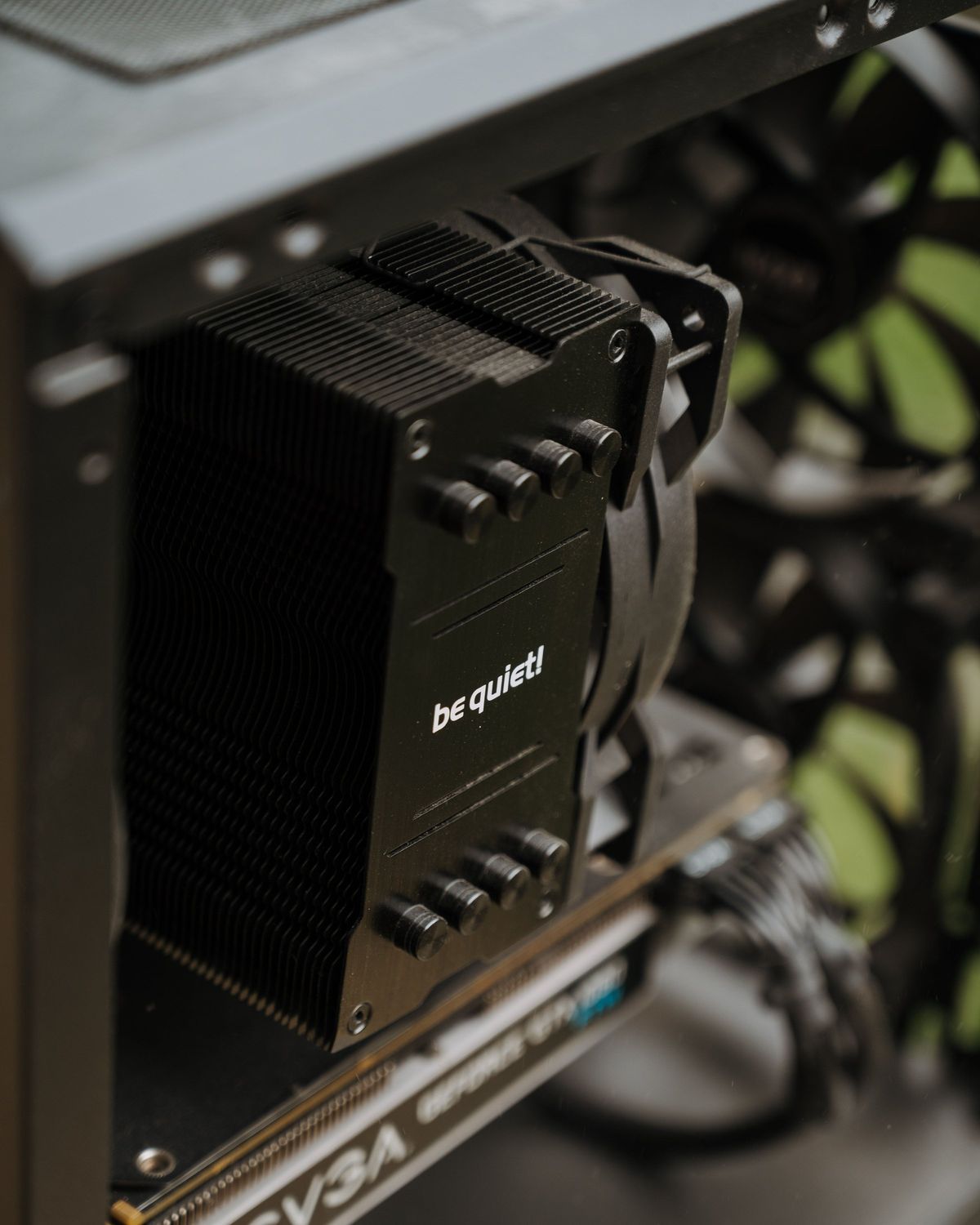
Dust blocks the fan and vents, the laptop overheats, and it slows itself down to cope. With the laptop off and unplugged, open the base and blow out the fan and vents with short bursts of compressed air. On a machine older than about five years, replacing the dried-out thermal paste on the processor often lowers temperatures noticeably.
Step 4: Replace the hard drive with an SSD
This is the upgrade that makes the biggest difference. A solid-state drive has no moving parts and starts Windows in seconds rather than minutes. Most older laptops take a standard 2.5-inch SATA SSD; newer ones use a small M.2 stick. Check which yours uses before buying.
Step 5: Add memory
With 4GB of memory, a laptop struggles as soon as you have a few browser tabs open. Aim for 8GB as a minimum and 16GB if you run business software, large spreadsheets or many tabs. Check the type (DDR3, DDR4 or DDR5) and whether there's a free slot. On some thin laptops the memory is soldered in and can't be upgraded.
Step 6: Replace the battery or charger if needed
If it only runs for twenty minutes unplugged, a new battery restores it. Be wary of the very cheapest ones: poor-quality batteries swell and fail early.
Step 7: Do a clean install of Windows
Don't copy the old system across. A fresh installation onto the new SSD removes years of leftover software and any malware. If the laptop supports Windows 11, install that. If it doesn't, the realistic options are a lightweight alternative such as Linux or ChromeOS Flex for web and email use, or keeping the machine for offline work only. Microsoft's paid extended updates for Windows 10 are temporary and aimed mainly at businesses.
Step 8: Update, protect and restore
- Run Windows Update until nothing is left, and install the manufacturer's drivers.
- Check the built-in antivirus is on.
- Install only the software you use.
- Copy your files back and set up an automatic backup.
What it costs
| Item | Typical cost |
|---|---|
| SSD, 500GB to 1TB | R600 – R1 200 |
| Extra memory, 8GB | R400 – R1 000, depending on type |
| Replacement battery (if needed) | R600 – R1 500 |
| Labour: clean, fit, install and data transfer | From about R500 |
These are ballparks for late 2026. Component prices move with the rand and with global supply, so ask for a current quote. Most refurbishments come to R1 500 to R3 000, compared with R6 000 or more for a new entry-level laptop that is often slower than a refurbished business model.
Do it yourself or have it done?
If you're comfortable with a small screwdriver and following a video for your exact model, steps 3 to 5 are manageable. The risky parts are static damage, brittle plastic clips, and the backup. We refurbish laptops and desktops from around R500 excluding parts, transfer your files, and give a 12-month warranty on the work.
Not sure whether yours is worth saving? Read repair, refurbish or replace first.